Team Access
- Introduction
- Adding team members
- Managing permissions
- Permission reference
- Using WordPress Login
- Security notes
Introduction
Staatic Cloud accounts can have multiple team members. Each team member has their own login and permissions, allowing you to decide which parts of the account and which sites they can access.
Team members with the right site permissions can also use Login from the Staatic dashboard to open WordPress Admin for a managed WordPress instance. This allows team members to access WordPress without sharing the initial WordPress admin password.
Adding team members
Team members can be added from the Staatic customer portal.
- Go to app.staatic.com and login with your account details.
- Click Account > Team Members.
- Click Create Team Member.
- Enter the team member’s Name, Email, Language and Password.
- Choose the permissions that should apply to this team member.
- Finish by clicking Create Team Member.
Note: team members use their own Staatic dashboard login. Do not share your own dashboard password or two-step verification codes with other users.
Note: new or changed email addresses may need to be verified before the team member can use the account normally.
Managing permissions
Permissions can be managed while creating or editing a team member.
The permissions screen has two main areas.
| Area | Description |
|---|---|
| Global Permissions | Presets for broad account or all-site access. |
| Site-Specific Permissions | Per-site permissions for individual sites in your account. |
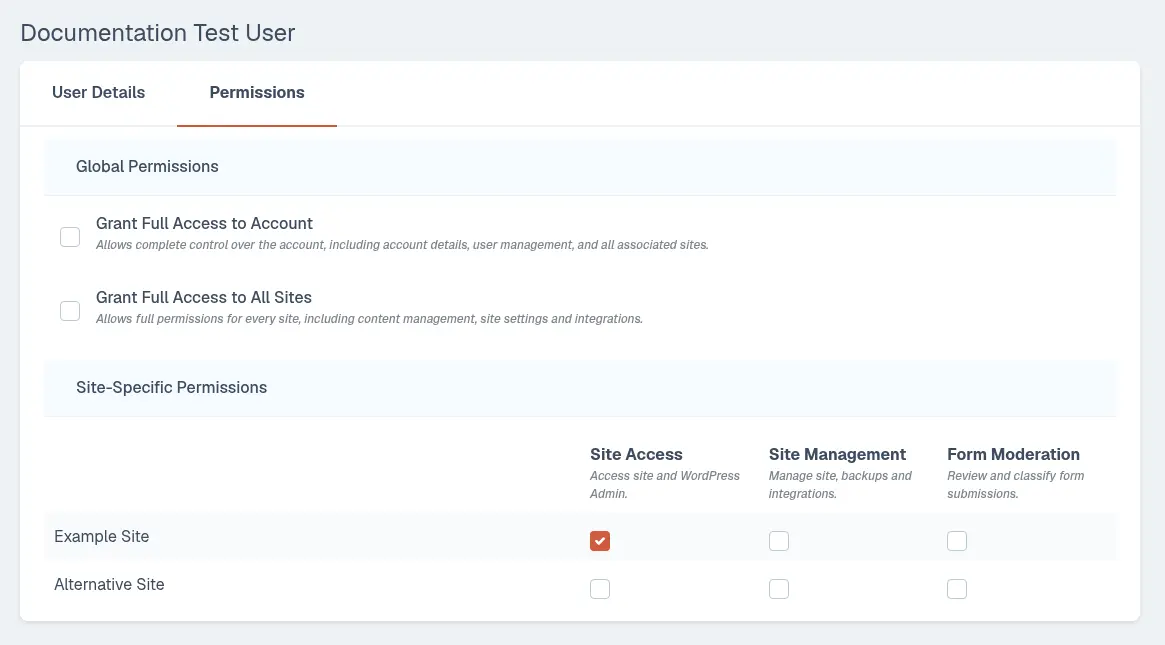
The two global presets are:
| Preset | Allows |
|---|---|
| Grant Full Access to Account | Complete control over the account, including account details, team members, permissions and all associated sites. |
| Grant Full Access to All Sites | Full permissions for every site, including content management, site settings and integrations. This does not grant account or subscription management access. |
If a team member only needs access to specific sites, leave the global presets disabled and assign permissions per site instead.
Note: site-specific permissions apply to the sites selected on the permissions screen. If a team member should automatically have access to all current and future sites, use Grant Full Access to All Sites.
Permission reference
The following permissions and presets are most relevant when managing team access.
| Permission | Scope | Allows |
|---|---|---|
| Grant Full Access to Account | Account | Manage account details, team members, permissions, subscriptions and all associated sites. |
| Grant Full Access to All Sites | Account | Manage every site without granting account or subscription management access. |
| Site Access | Site | Access the site details and WordPress Admin. |
| Site Management | Site | Manage the site, backups, integrations and advanced WordPress access such as SFTP and database credentials. |
| Form Moderation | Site | Review and classify form submissions. |
Common examples:
| Use case | Suggested permissions |
|---|---|
| A developer managing one site | Site Management for that site. |
| A content editor who only needs WordPress Admin | Site Access for that site. |
| A support user reviewing form submissions | Form Moderation for that site. |
| An account administrator | Grant Full Access to Account. |
Using WordPress Login
Authorized team members can open WordPress Admin from the site details page.
- Go to app.staatic.com and login with your account details.
- Click Account > Sites. Then click on the View Icon next to the relevant site.
- Click the WordPress tab.
- Click Login to open WordPress Admin.
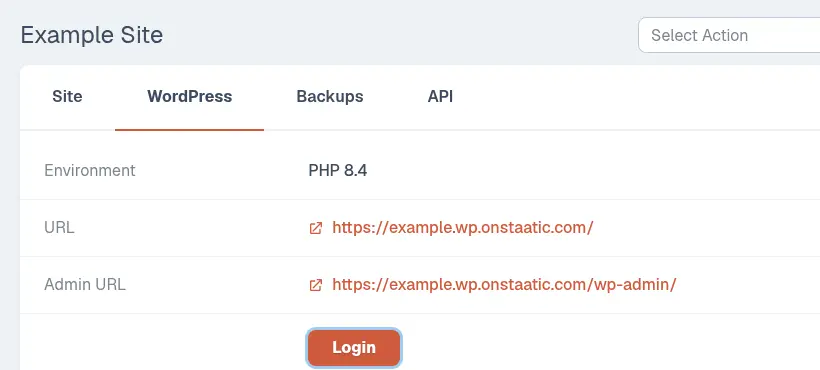
The Login button creates a short-lived authenticated link to WordPress Admin. If the link expires or does not open WordPress correctly, return to the Staatic dashboard and click Login again.
WordPress Login is separate from direct WordPress admin credentials. It does not copy the team member’s Staatic dashboard password into WordPress.
When a team member uses WordPress Login, Staatic chooses the WordPress account based on the permissions that team member has for the site.
| Team member permission | WordPress login behavior |
|---|---|
| Site Access | Staatic uses a WordPress user with the same email address when one exists. If no matching WordPress user exists yet, Staatic creates a WordPress user for that team member with the Author role. |
| Site Management | Staatic can use an existing higher-privilege WordPress user so the team member can manage the WordPress instance. Grant this permission only to users who should be trusted with administrative site operations. |
Users with Site Management can also restore the initial WordPress admin account when direct WordPress login credentials are needed.
Access to WordPress-related credentials depends on the team member’s permissions.
| Access | Required permission |
|---|---|
| WordPress Login and HTTP Basic Authentication credentials | Site Access or Site Management |
| SFTP credentials | Site Management |
| Database credentials and PhpMyAdmin Login | Site Management |
| WordPress backups, imports and integrations | Site Management |
Security notes
Follow these recommendations when managing team access.
- Give each person their own team member account.
- Grant only the permissions a team member needs.
- Use Login from the Staatic dashboard instead of sharing WordPress admin passwords when possible.
- Remove team members who no longer need access.
- When offboarding someone who used WordPress Login, also review the WordPress Users screen and remove or downgrade any WordPress account they no longer need.
- Treat copied passwords, SFTP credentials, database credentials and generated login links as sensitive.
- Enable two-step verification for your own user account where possible.