Importing a WordPress Site
- Introduction
- Before you start
- Importing your backup
- Reviewing and publishing the imported site
- Limitations
Introduction
Staatic Cloud allows you to import an existing WordPress site into a newly created cloud site instead of starting with an empty installation.
The import runs against your site’s managed WordPress instance. Your current public static site is not affected until you publish a new static version.
Supported backup types are:
- UpdraftPlus backup bundle ZIP files
- full single-site Duplicator archive ZIP files
Before you start
Before importing a backup, make sure that the following requirements are met.
- Create your Staatic Cloud site first by following the Getting Started guide.
- Wait until site provisioning has finished and your managed WordPress instance is available.
- Prepare a supported single-site WordPress backup ZIP.
- If your backup ZIP is too large for browser upload, upload it to your site over SFTP first. We recommend using
/private/imports, because it keeps the backup away from web-accessible WordPress paths.
Note: Staatic creates a pre-import backup before the import starts, but the import still replaces the current files and database of the managed WordPress instance.
Importing your backup
Follow these steps to import your site.
- Go to app.staatic.com and login with your account details.
- Click Account > Sites. Then click on the View Icon next to the relevant site.
- Click the WordPress tab.
- Click Import from Backup when the import prompt is shown, or choose Import WordPress Backup from the actions menu.

-
Choose one of the available source options.
- Upload from computer to upload a ZIP file through your browser.
- Choose from SFTP files to select a ZIP that is already present on the site’s filesystem. For backups uploaded over SFTP,
/private/importsis the recommended location.
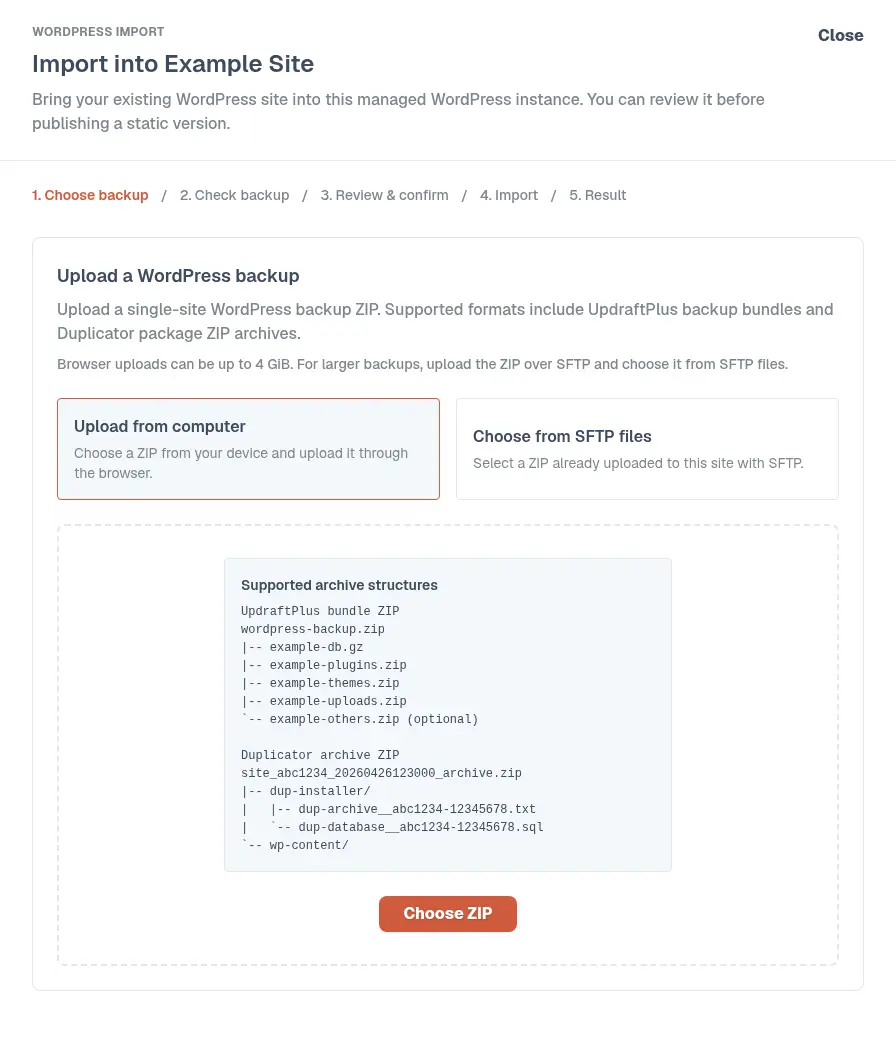
- Select your ZIP file and continue.
- Wait for Staatic to inspect the backup and detect the format.
- Review the detected details and warnings.
- Confirm the import to restore the backup into your managed WordPress instance.
During the import Staatic will:
- create a pre-import backup of the current managed WordPress instance
- replace the current WordPress files and database with the imported site
- validate the imported WordPress installation before marking the import as completed
Reviewing and publishing the imported site
After the import has completed, review the imported site in WordPress before publishing it as a static site.
- Click Login on the WordPress tab to access WordPress Admin. See Team Access if the user reviewing the site needs WordPress access.
- Review your content, theme, plugins, and site settings.
- Make any changes needed for your Staatic setup.
- Start a new Staatic publication when you are ready.
Your public static site will only change after that new publication completes.
Limitations
Keep the following limitations in mind.
- Only supported backup ZIP formats can be imported.
- Browser uploads are subject to upload size limits. Larger backups should be uploaded over SFTP first.
- The import is intended for single-site WordPress backups. Duplicator DAF archives, database-only packages, and multisite packages are not currently supported. See WordPress Multisite for how a network is set up on Staatic Cloud.
- Completing an import does not automatically publish the imported site. You must publish a new static version yourself.
- Even after a successful import, you should still review the imported WordPress site manually before publishing it.